Smart TV keeps buffering? How to fix streaming problems at home
The short answer
Most smart TV buffering comes from a weak WiFi signal at the TV, not slow internet. TVs have small WiFi antennas and often sit behind cabinets or block walls. The best fixes, in order, are a network cable to the TV, a mesh WiFi point near it, or a modern streaming stick in place of the TV's built-in apps. Restarting the TV fully and updating the apps fixes short-term glitches.
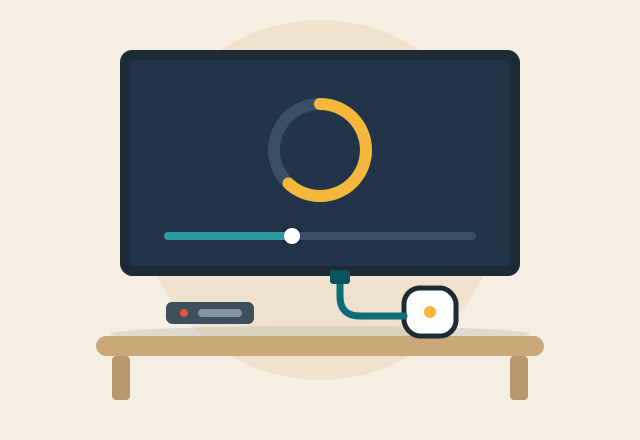
Why TVs buffer when phones don't
It's common for a phone to stream fine in the same room where the TV spins and buffers. That's because the TV is often the worst-connected device in the house:
- TVs have small, weak WiFi antennas, usually on the back of a metal panel that faces the wall.
- TVs sit in the worst spots for WiFi: inside an entertainment center, mounted on a block wall, or in a casita or back bedroom far from the router.
- Streaming needs a steady connection. Netflix recommends at least 5 Mbps for 1080p and 15 Mbps for 4K, and it needs that speed constantly, not just in bursts. A connection that dips every few seconds buffers even when a speed test looks fine.
- Older smart TVs fall behind. Built-in apps on TVs more than about five to seven years old get fewer updates, run slowly, and eventually stop being supported at all.
Quick fixes to try first
- Restart the TV properly. Many TVs only go to sleep when you press power. Unplug the TV from the wall for 60 seconds, then plug it back in. This clears the memory and is the single most effective quick fix.
- Restart the modem and router, modem first, then the router once the modem's lights settle.
- Update the TV and the app. In the TV's settings, look for Software Update or System Update. Then update or reinstall the streaming app that's buffering.
- Check the TV's own connection. Most TVs have a network test in Settings, under Network or Connection. If the TV sees a weak signal or a much lower speed than your phone does next to it, the problem is WiFi coverage.
- Lower the quality as a test. If buffering stops when the app is set to a lower quality, the connection is the bottleneck, not the app.
Fixes that solve it for good
- Plug the TV in with a network cable. If there's an Ethernet jack near the TV, or the router or a mesh point can sit nearby, a cable is the most reliable fix. It also frees up WiFi for everything else in the house.
- Put a mesh point near the TV. Then connect the TV to the mesh point with a short cable. This works even when the router is at the other end of the house.
- Use the TV coax you already have. Many homes have TV coax in every room. MoCA adapters turn that coax into a wired network connection for the TV without running new cable.
- Replace old built-in apps with a streaming device. A current Roku, Fire TV, Google TV Streamer or Apple TV costs far less than a new TV and runs apps faster. Several models have an Ethernet port or a cable adapter, and plugging one into the TV's HDMI port bypasses the TV's aging software.
When it isn't the WiFi
- Only one app buffers: the problem is usually that app or its service. Check its status page or try again later.
- It buffers in the evening only: neighborhood internet congestion or your plan being shared with many devices at once. Running a speed test at the same time helps show which.
- Picture freezes but audio continues: this can be an HDMI cable or port issue, especially with sound bars and receivers. Try a different HDMI port or a certified high-speed HDMI cable.
When to call for help
If your TV still buffers after the steps above, or you'd like the TVs in your home wired or set up with streaming devices so they just work, I'll test the connection at each TV, fix the weak spots, and set up your streaming apps and remotes so they're easy to use. See smart home and TV setup and WiFi and router setup.
Common questions
Why does my smart TV buffer when my internet is fast?
Because the TV's own connection is weak, even if your internet plan is fast. TVs have small antennas and often sit behind cabinets or block walls. Run the network test in the TV's settings: if it shows much less speed than your phone gets nearby, improve WiFi at the TV or connect it with a cable.
How much internet speed do I need for streaming 4K?
Netflix recommends at least 15 Mbps for 4K and 5 Mbps for 1080p HD, per TV, delivered steadily. For a home with two or three TVs streaming at once plus phones and computers, a plan of 100 Mbps or more with good WiFi coverage is comfortable.
Is it better to connect my TV with an Ethernet cable?
Yes. A wired connection gives the TV full, steady speed and almost always ends buffering. If running a cable isn't practical, a mesh point near the TV connected with a short cable, or a MoCA adapter over your TV coax, gets nearly the same result.
Should I buy a streaming stick or a new TV?
If the picture is still good and only the apps are slow or buffering, a streaming stick or box is the better buy. It costs a fraction of a new TV, gets regular updates, and replaces the TV's aging built-in apps.
Why does my TV only buffer at night?
Evening is when the most people are streaming, both in your home and on your internet company's network. Run a speed test on a wired computer or next to the router during that time. If it's slow there too, the issue is the internet service. If it's fast there, it's WiFi at the TV.
More tech tips
Starlink setup tips for Rio Verde and rural homes
How to get Starlink working well in Rio Verde: avoiding obstructions, mounting for monsoon winds, router placement and WiFi for the whole property.
Why WiFi struggles in Fountain Hills homes, and how to fix dead spots
Block walls, stucco over wire lath, casitas and long single-story layouts are tough on WiFi. Here's why, and the mesh and wiring fixes that actually work.
Printer says "offline"? How to fix it at home
Why your printer shows "offline" on Windows or Mac even though it's on WiFi, the fixes that work, and how a technician stops it from happening again.
Scam calls and texts targeting seniors: what to watch for and how to stay safe
The phone, text and computer scams most often aimed at older adults in Arizona, the warning signs, and the specific phone settings and habits that stop them.