Why WiFi struggles in Fountain Hills homes, and how to fix dead spots
The short answer
WiFi struggles in many Fountain Hills homes because concrete block walls and stucco over metal lath absorb the signal, and long single-story layouts put rooms far from the router. The reliable fix is a mesh WiFi system with the mesh points connected by Ethernet or by the TV coax already in your walls, plus a router moved out of the closet where the internet line comes in.
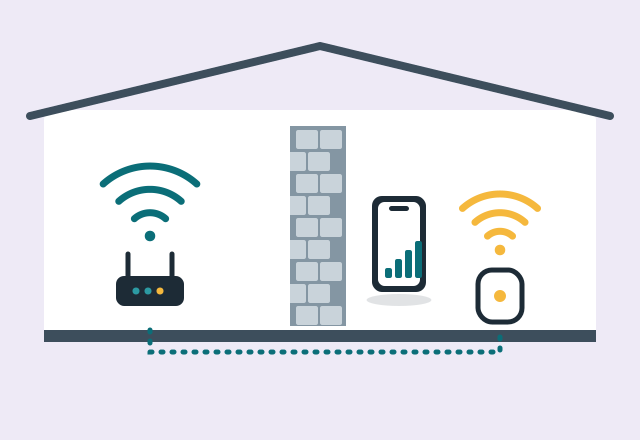
Why homes here are hard on WiFi
WiFi is a radio signal, and the way many homes in Fountain Hills and the northeast Valley are built works against it:
- Concrete block walls. Block absorbs WiFi far more than wood framing and drywall. One interior block wall can cut the signal behind it by more than half, and the faster 5 GHz and 6 GHz bands lose even more than 2.4 GHz.
- Stucco over wire lath. Exterior stucco is applied over a metal mesh. That mesh acts like a screen and blocks most of the signal headed to the patio, pool, garage or casita.
- Long single-story layouts. Ranch-style homes put the primary bedroom at one end and the office or guest rooms at the other, often 60 to 80 feet apart.
- Detached casitas. The signal has to leave through one stucco wall, cross the courtyard and enter through another.
- The router lives where the cable comes in. That's usually a closet, the garage or a corner office, which is about the worst place for it.
First, find out if it's the WiFi or the internet
Run a speed test (search "speed test" in your browser) with your phone standing next to the router, then in the room where things are slow.
- Fast next to the router, slow elsewhere: it's WiFi coverage. Read on.
- Slow even next to the router: the problem is the internet service, the modem or the router itself. Restart the modem and router, and if it stays slow, call your internet company. Paying for a faster plan won't fix coverage.
The fixes, from easiest to most effective
- Move the router. Out of the closet, off the floor, away from the TV and the fish tank, and as central and high as the internet line allows. Sometimes a longer cable to a better spot is all it takes.
- Replace an old router. Routers older than about 5 years often lack WiFi 6 and struggle with today's 20 to 40 connected devices: phones, TVs, cameras, doorbells, thermostats, speakers.
- Use mesh, not extenders. A mesh system (eero, Google Nest WiFi, TP-Link Deco, ASUS ZenWiFi and others) uses two or three matching units that act as one network with one name. Plug-in extenders usually create a second network, halve your speed and leave phones clinging to the weak signal.
- Connect the mesh points with a wire. Mesh units talk to each other over WiFi by default, so the block wall that slows your laptop also slows the link between the units. A wired connection between them, called wired backhaul, gives every room near full speed. Many homes here have Ethernet in a few rooms or TV coax in nearly every room. MoCA adapters let mesh units use that coax as a network cable, with no new wires.
- Put your internet company's gateway in bridge mode. If you add mesh behind the gateway your internet company provided, turn off the gateway's own WiFi or set it to bridge or passthrough mode. Two routers competing creates connection problems that are hard to diagnose.
Casitas, patios and the pool
- Casita or guest house: best is a network cable in buried conduit from the house to a mesh unit in the casita. If there's no path for a cable, an outdoor point-to-point wireless bridge between the two buildings works well and often reaches 300 Mbps or more.
- Patio and pool: an outdoor-rated access point or mesh unit mounted under the eave covers the yard without fighting the stucco.
- Cameras and video doorbells: they sit at the very edge of the house, outside the stucco. If they keep going offline or the video freezes, weak coverage is the usual reason, not the camera.
When to call for help
If you have dead spots, a casita with no signal, cameras that drop off or TVs that buffer, I'll test signal and speed in every room, find where it falls off, and set up the right equipment, including wired backhaul over the cable or coax you already have. You don't need to figure out what to buy. See WiFi and router setup.
Common questions
Why is my WiFi so bad in one part of my house?
Usually something between the router and that room is absorbing the signal, such as a block wall, stucco, a fireplace or appliances, or the room is simply too far away. Moving the router to a central spot and adding mesh with a wired link to the far end fixes it.
Will faster internet fix my WiFi dead spots?
No. If the signal can't reach a room, a faster plan doesn't change that. Test speed next to the router: if it's fast there and slow elsewhere, you need better coverage, not a bigger internet plan.
Is mesh WiFi better than a WiFi extender?
For most homes, yes. Mesh units act as one network and hand your devices off smoothly as you move. Extenders usually create a second network, cut speed roughly in half and leave devices stuck on a weak signal.
How many mesh points do I need for my house?
Most homes need two or three. Long single-story homes, homes with interior block walls and homes with a casita or detached office often need one more, or one unit connected by cable at the far end.
Can I get WiFi to my casita without running a new cable?
Often yes. If the casita has TV coax from the main house, MoCA adapters can carry the network over it. If not, a point-to-point wireless bridge between the two buildings works well when there's a clear line of sight.
More tech tips

Printer says "offline"? How to fix it at home
Why your printer shows "offline" on Windows or Mac even though it's on WiFi, the fixes that work, and how a technician stops it from happening again.
Scam calls and texts targeting seniors: what to watch for and how to stay safe
The phone, text and computer scams most often aimed at older adults in Arizona, the warning signs, and the specific phone settings and habits that stop them.
Still on Windows 10? Your options, including free security updates until October 2027
Windows 10 support has ended, but home users can get free security updates until October 12, 2027. Your three options and how to choose.
Is that virus warning real? How to spot a fake pop-up and what to do
How to tell a fake Microsoft or Apple virus warning from a real one, how to close it safely, and what to do if you already called the number.