Is that virus warning real? How to spot a fake pop-up and what to do
The short answer
A pop-up that says your computer is infected and gives you a phone number to call is a scam. Microsoft, Apple and real antivirus programs never put a phone number in a warning. Don't call. Close the browser with Task Manager (Windows) or Force Quit (Mac). If you already let someone connect to your computer, unplug it from the internet, call your bank, and have the remote access software removed before you use it again.
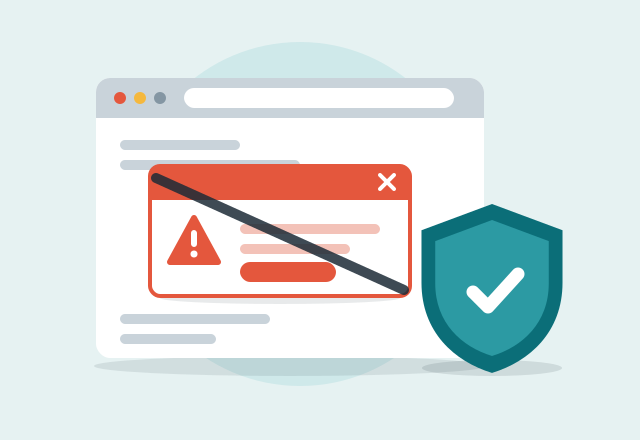
How a fake warning actually works
These pop-ups aren't viruses on your computer. They're web pages built to look like a system alert. They switch the browser to full screen so you can't see the tabs or the close button, play a loud alarm or a recorded voice, and sometimes freeze the mouse so it feels like the whole computer is locked. The goal is to get you to call the number, where a "technician" talks you into installing remote access software and paying for a fake repair.
Here's how to tell fake from real:
- Fake: a phone number to call, "Microsoft Windows Defender Alert," "Apple Security Center," an FBI or police seal, a countdown timer, a voice or alarm, a full-screen page inside Chrome, Edge, Safari or Firefox.
- Real: a small notification in the corner of the screen from Windows Security (or your installed antivirus), no phone number, and it opens the Windows Security app, not a website.
Close it without calling
- Don't click anything on the page, including "OK," "Close" or "Cancel." On these pages, every button just triggers more pop-ups or a download.
- Press the Esc key or F11. That often exits full screen and shows the normal browser window, so you can close the tab.
- Force the browser closed. On Windows, press Ctrl, Shift and Esc together to open Task Manager, select Chrome or Edge, and click "End task." On a Mac, press Command, Option and Esc together, choose the browser and click "Force Quit."
- If the computer truly won't respond, hold the power button for 10 seconds. It's safe and won't damage anything.
- When you reopen the browser, don't restore your tabs. Chrome and Edge offer to "Restore pages." Say no, or the scam page opens again.
If you already called or let them in
You're not alone, and acting in the next hour matters more than anything else. Here's what I do on these visits, in order:
- Disconnect from the internet. Turn off WiFi on the computer or unplug the network cable. That ends their live connection.
- Call your bank or card company using the number on the back of your card if you paid anything or showed them your banking. Say "tech support scam." They can often stop or reverse a card charge. Gift cards and wire transfers are much harder to recover, so call right away.
- Remove the remote access programs. Scammers usually install AnyDesk, TeamViewer, UltraViewer, ScreenConnect or similar tools so they can come back later. On Windows, check Settings, then Apps, then Installed apps, and uninstall any you didn't install yourself. Some also abuse Windows' built-in Quick Assist, which is fine to keep but should never be used with someone who called you.
- Change passwords from a different device, starting with your email, then banking. Turn on two-step verification for both.
- Check your email for rules. Scammers sometimes add a forwarding rule or a filter so they keep getting copies of your mail, including bank alerts. In Gmail, look under Settings, then Forwarding. In Outlook, check Rules.
- Watch for the "refund" call. A few days or weeks later, someone calls saying you're owed a refund and "accidentally" sends too much, then asks you to send the difference back. It's the same scammers.
When to call for help
If you called the number, someone connected to your computer, or the pop-ups keep coming back, I'll come to your home, remove the remote access software and anything else they installed, check your browser and email for changes they made, and lock down your accounts. There's no judgment. These scams are designed to fool smart, careful people. See virus removal and scam cleanup. For phone and text scams, read scam calls and texts targeting seniors.
Common questions
Is the Microsoft virus warning with a phone number real?
No. Microsoft never puts a phone number in an error or security warning and never calls people about viruses. Any warning that asks you to call a number is a scam. Close the browser and don't call.
How do I get rid of a pop-up that says my computer is locked?
Press Esc or F11 to exit full screen, then close the tab. If that doesn't work, open Task Manager with Ctrl, Shift and Esc and end the browser. On a Mac, use Command, Option and Esc to force quit. Your computer isn't actually locked.
What should I do if I let a scammer into my computer?
Disconnect it from the internet right away, call your bank if you paid or logged into banking, and change your email and bank passwords from another device. Then have the remote access software removed before you use the computer for anything personal.
Can a fake pop-up give my computer a virus?
Usually not by itself. The pop-up is just a scary web page, and closing the browser ends it. The real damage happens when you call and let someone install software or when you download a "cleaner" the page offers.
Is Windows Security enough, or do I need to buy antivirus?
For most home users, Windows Security (built into Windows 10 and 11) is enough, as long as Windows updates are installing. Be very wary of antivirus offers that appear in pop-ups or ads, since many of those are part of the same scams.
More tech tips
Still on Windows 10? Your options, including free security updates until October 2027
Windows 10 support has ended, but home users can get free security updates until October 12, 2027. Your three options and how to choose.
Printer says "offline"? How to fix it at home
Why your printer shows "offline" on Windows or Mac even though it's on WiFi, the fixes that work, and how a technician stops it from happening again.
Repair or replace? When an older laptop is worth fixing
How a technician decides whether an older laptop is worth repairing, which repairs give the most life for the money, and when it's time to replace it.