Printer says "offline"? How to fix it at home
The short answer
A printer shows "offline" when your computer can't find it on the network, even if the printer itself says it's connected. The quick fix is to restart the printer, clear the print queue and turn off "Use Printer Offline." The lasting fix is to give the printer a reserved address in your router and re-add it on your computer by that address, so it stops disappearing after power outages or router changes.
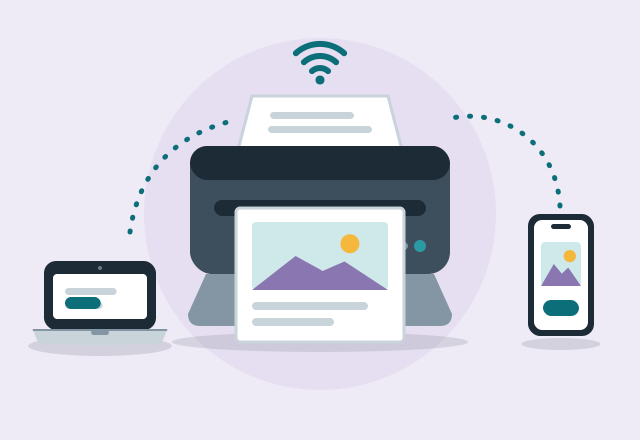
What "offline" really means
"Offline" almost never means the printer is broken. It means your computer sent a print job to the address where it last saw the printer and nothing answered. The printer can be powered on, showing a full WiFi signal and still be "offline" to your computer, because the two are looking for each other in different places.
In the homes I work in, it comes down to one of these five things:
- The printer's network address changed. Your router hands out addresses (like 192.168.1.23) and can give the printer a new one after a power outage or a router restart. Windows often adds wireless printers using a "WSD" connection that doesn't always follow the printer to its new address, so the printer shows offline until it's re-added.
- The WiFi changed. A new router from your internet company, a new WiFi password, or a new mesh system leaves the printer trying to rejoin a network that no longer exists.
- The printer is on the edge of your WiFi. A printer in a back office, a casita or on the far side of a block wall connects, drops, reconnects and drops again.
- A stuck print job. One failed job sits at the top of the queue and blocks everything behind it.
- "Use Printer Offline" got switched on. Windows sometimes turns this on by itself after a failed job.
The 10-minute fix
Go through these in order and test after each step.
- Look at the printer first. Most printers have a WiFi light or a wireless icon on the screen. Steady means connected. Blinking or crossed out means the printer itself is off the network, so skip to step 4.
- Restart in this order: printer off, wait 30 seconds, printer on. Wait until it's completely finished warming up, then restart the computer. Restarting the computer first doesn't help, because it will look for the printer before the printer is back.
- Clear the queue and the offline setting. On Windows 11, open Settings, then Bluetooth and devices, then Printers and scanners. Click the printer and choose "Open print queue." Cancel every job. Then open the "Printer" menu at the top of that window and make sure "Use Printer Offline" has no check mark. On a Mac, open System Settings, then Printers and Scanners, click the printer, and if the queue says "Paused," click Resume.
- Rejoin the WiFi from the printer. On the printer's screen, find Wireless Setup Wizard or WiFi Setup and choose your network again. Printers without a screen usually have a WPS button you can press together with the WPS button on your router, or you can set them up with the maker's app (HP Smart, Epson Smart Panel, Canon PRINT, Brother Mobile Connect).
- Remove and re-add the printer on the computer. On Windows, remove it from Printers and scanners, then choose "Add device." On a Mac, select it in Printers and Scanners, click the minus button, then add it back with the plus button.
How I make it stop happening
If your printer goes offline every week or two, the steps above only fix it until the next outage. When I set up a printer, I do three things so it stays put:
- Reserve the printer's address in the router. In your router's app or settings page (eero, Google Home, TP-Link Deco, or your internet company's app), find the printer in the device list and set it to always get the same address. This is called a reserved address or DHCP reservation, and it's the single most effective fix.
- Add the printer on the computer by that address. On Windows, choose "Add device," then "Add manually," then "Add a printer using an IP address or hostname," and type the reserved address. That replaces the WSD connection with a direct one that doesn't wander.
- Fix the WiFi where the printer sits. Many home printers only use 2.4 GHz WiFi. If the printer is at the edge of coverage, a mesh point nearby or a network cable to the router ends the dropouts for good.
To find the printer's current address, print a network configuration page from the printer's menu (often under Settings, Network or Reports) or look for the printer in your router app's list of connected devices.
When to call for help
Call if the printer still won't print after the steps above, if a new router or mesh system broke printing for the whole house, or if you'd like every computer, phone and tablet printing reliably without thinking about it. I set up the printer and the network side together so it stays connected, and leave you with a printed note of what to do if it ever happens again. See printer setup and repair.
Common questions
Why does my printer say offline when it's connected to WiFi?
Because your computer is looking for the printer at an old address. The printer joined the WiFi fine, but the router gave it a new address and the computer didn't follow. Re-adding the printer fixes it today, and reserving its address in the router keeps it fixed.
How do I get my printer back online in Windows 11?
Open Settings, then Bluetooth and devices, then Printers and scanners. Click the printer, open the print queue, cancel all jobs, and make sure "Use Printer Offline" is unchecked in the Printer menu. If it still shows offline, remove the printer and add it again.
Why does my printer go offline after a power outage?
When the power comes back, the router restarts and may give the printer a different network address. Computers that added the printer the default way keep looking at the old address. A reserved address in the router stops this.
Do I need a new printer if it keeps going offline?
Almost never. Offline is a connection problem, not a hardware failure. Consider a new printer only if yours can't join your current WiFi at all, the maker has stopped updating its software, or a repair would cost close to the price of a new one.
Can I print from my iPhone if my printer works on my computer?
Yes, as long as the iPhone is on the same WiFi as the printer and the printer supports AirPrint, which most wireless printers from the last several years do. Open what you want to print, tap the share button, then Print. If the printer doesn't appear, it's usually on a different network or band than the phone.
More tech tips

Still on Windows 10? Your options, including free security updates until October 2027
Windows 10 support has ended, but home users can get free security updates until October 12, 2027. Your three options and how to choose.
Is that virus warning real? How to spot a fake pop-up and what to do
How to tell a fake Microsoft or Apple virus warning from a real one, how to close it safely, and what to do if you already called the number.
Repair or replace? When an older laptop is worth fixing
How a technician decides whether an older laptop is worth repairing, which repairs give the most life for the money, and when it's time to replace it.